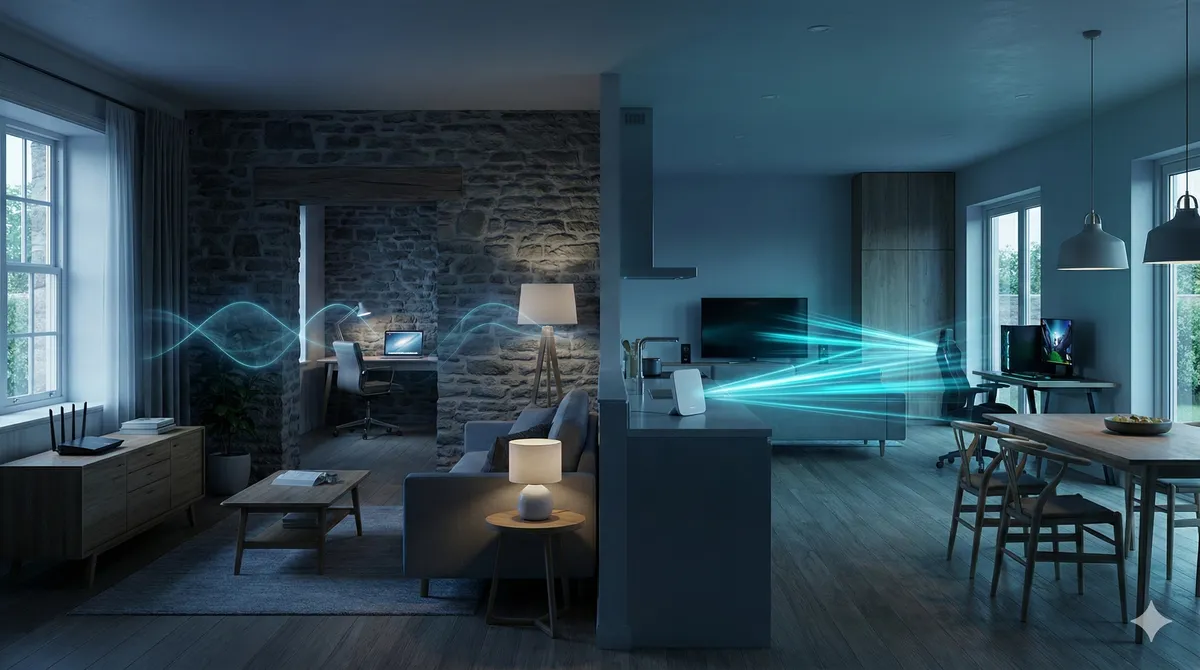
If your devices work fine in one room and struggle in the next, choosing the wrong Wi-Fi band can make a decent network feel broken and leave you with weak Wi-Fi signal where you actually use it.
If you need help in Dublin or surrounding areas, the closest starting point is internet and Wi-Fi troubleshooting, and the next most relevant path is Wi-Fi dead zone fixes.
What 2.4 GHz and 5 GHz actually mean
They are two different Wi-Fi frequency bands.
Think of them like two roads:
- One road is longer and reaches more places, but traffic is heavier.
- The other road is shorter and cleaner, so speeds are better when you are close enough.
That is basically 2.4 GHz vs 5 GHz.
The core difference
2.4 GHz
- Better range through walls and floors
- Usually slower than 5 GHz
- More interference (many devices use this band)
5 GHz
- Faster speeds in most cases
- Lower latency when signal is strong
- Shorter range and weaker wall penetration
So yes, one is faster and one penetrates better.
Why 2.4 GHz often feels slower
2.4 GHz is crowded.
It is used by lots of devices, including:
- Older Wi-Fi devices
- Bluetooth devices
- Some smart-home gear
- Other nearby Wi-Fi networks
In many homes and apartments, that band can be busy all day. So even though it reaches farther, the quality can drop when there is interference.
Why 5 GHz feels better near the router
5 GHz has wider channels and usually less interference. That is why downloads, streaming, and video calls often feel better when you are on 5 GHz and close to the access point.
But once you move behind several walls or to another floor, 5 GHz signal can fall off quickly.
Then speeds drop, or the device jumps bands.
Quick comparison table
| Band | Typical speed | Range through walls | Interference level | Best use |
|---|---|---|---|---|
| 2.4 GHz | Lower | Better | Higher | Far rooms, IoT, basic browsing |
| 5 GHz | Higher | Weaker | Lower (usually) | Close/medium range, streaming, calls, gaming |
How to choose which one to use
Use this simple rule:
- If you are close to the router or AP, use 5 GHz.
- If you are far away or behind multiple walls, 2.4 GHz may be more stable.
- If 5 GHz is unstable in a room, do not force it. Use the band that is actually reliable there.
Speed is not everything. A stable connection usually beats a faster connection that keeps dropping.
What should you use for common devices?
Use 5 GHz for:
- Smart TVs near router/AP
- Laptops for video calls
- Gaming consoles
- Large downloads and uploads
Use 2.4 GHz for:
- Smart plugs and sensors
- Cameras far from router
- Devices in hard-to-reach rooms
- Basic browsing where coverage matters more than top speed
Many homes should use both at the same time.
Should you split SSIDs or keep one Wi-Fi name?
Both can work.
One Wi-Fi name (same SSID for both bands)
Pros:
- Easier for most people
- Devices can move between bands automatically
Cons:
- Some devices choose the wrong band and hold on too long
Separate names (example: Home-2G and Home-5G)
Pros:
- Full control over which band each device uses
- Easier to troubleshoot
Cons:
- More manual management
- Less seamless roaming for non-technical users
If your setup supports good band steering and works well, keep one name.
If certain rooms/devices keep misbehaving, split SSIDs and test.
The mistake people make
A common mistake is trying to force everything onto 5 GHz because it is “faster.”
That can backfire in larger homes. Devices in weak areas may show poor speeds or random drops.
Another mistake is leaving everything on 2.4 GHz forever. That can create congestion and cap performance for devices that would run much better on 5 GHz.
Balanced setup is usually best.
What if both bands still feel bad?
Then the issue may not be band choice. It may be coverage design.
Common signs:
- Good speed beside the router, bad speed in main rooms
- Upstairs signal always weak
- Dead zones in offices or back rooms
In those cases, you usually need better access point placement or additional wired-backhaul APs, not endless router reboots.
If that sounds familiar, see our Wi-Fi dead zone fixes and Wi-Fi installation service.
If you have not tested room by room yet, start there first. We have a step-by-step guide for that here: How to Check if Your Internet Is Slow or Your Wi-Fi Is Weak.
Simple decision checklist
Before changing settings, check these:
- Test speed beside router on a newer device.
- Test speed in each key room.
- In strong-signal rooms, prefer 5 GHz.
- In weak-signal rooms, test 2.4 GHz stability.
- Move high-demand devices to better coverage zones or wired links.
- If drops continue, improve Wi-Fi layout with better AP placement.
Bottom line
A practical guide to the real difference between 2.4 GHz and 5 GHz Wi-Fi, why one reaches farther and the other is faster, and how to choose the right one in each room.
If you want help with this in Dublin or surrounding areas, start with internet and Wi-Fi troubleshooting, Wi-Fi dead zone fixes, or book a consultation.